 GTA 5
GTA 5
How to Crouch in GTA 5 – Xbox, PC, PS4, PS5

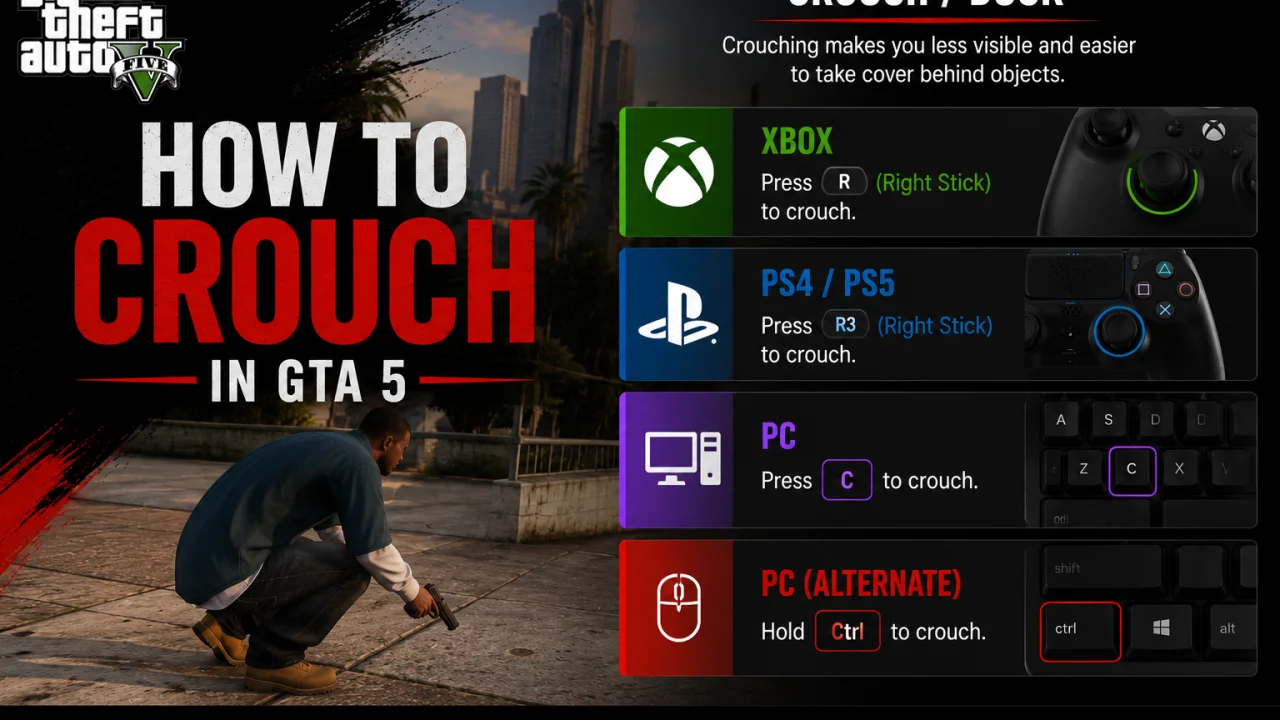
GTA 5 does not treat crouching like a normal shooter crouch. The default on-foot action players usually mean is Stealth Mode, which lowers your stance and lets your character move quietly.
This matters for PC, Xbox, PS4, and PS5 players because many guides mix up Stealth Mode, cover, and vehicle ducking. Those are separate actions with separate controls.
This guide gives the correct default crouch-style input for each platform, explains what it does, and shows when to use cover instead. It does not invent settings or promise behavior GTA 5 does not actually have.
GTA 5 Crouch Answer
The correct short answer is this: GTA 5 uses Stealth Mode for the closest default crouch-style movement. Press Left Ctrl on PC, press the left stick on Xbox, or press L3 on PS4 and PS5.
This is a toggle. Tap the input once to enter Stealth Mode, then tap it again to leave it.
Pick your platform for the default input.
Tap once while on foot. Tap Left Ctrl again to exit Stealth Mode.
GTA 5 Crouch Controls
Use the table when you only need the default input. The control label to use in the article is Stealth Mode, not a made-up settings toggle.
| Platform | Default Input | Real Control Label | Default Wording |
|---|---|---|---|
| PC | Left Ctrl |
Stealth Mode | Press Left Ctrl to enter Stealth Mode. |
| Xbox | Left Stick Press |
Stealth Mode | Press the left stick inward to enter Stealth Mode. |
| PS4 | L3 |
Stealth Mode | Press L3 to enter Stealth Mode. |
| PS5 | L3 |
Stealth Mode | Press L3 to enter Stealth Mode. |
GTA 5 Stealth Mode
Stealth Mode is the crouch-style action most players are looking for. It is not a full prone stance, and it is not a separate “crouch anywhere” button.
- Stand on foot with your character.
- Press Left Ctrl on PC.
- Press the left stick inward on Xbox.
- Press L3 on PS4 or PS5.
- Move normally while Stealth Mode is active.
GTA 5 PC Crouch
On PC, the default crouch-style input is Left Ctrl. The real label is Stealth Mode.
- Load into GTA 5.
- Stand on foot.
- Tap Left Ctrl.
- Move with WASD.
- Tap Left Ctrl again to leave Stealth Mode.
GTA 5 Xbox Crouch
On Xbox, press the left stick inward. For Xbox wording, call this left stick press or LS, not L3.
- Load into GTA 5.
- Stand on foot.
- Press the left stick inward.
- Move with the left stick.
- Press the left stick inward again to leave Stealth Mode.
GTA 5 PS4 Crouch
On PS4, press L3. L3 means pressing the left analog stick inward, not moving the stick left.
- Load into GTA 5.
- Stand on foot.
- Press L3.
- Move with the left stick.
- Press L3 again to leave Stealth Mode.
GTA 5 PS5 Crouch
On PS5, use L3 just like PS4. The PS5 version does not need a separate crouch setting for this default behavior.
- Load into GTA 5.
- Stand on foot.
- Press L3.
- Move with the left stick.
- Press L3 again to leave Stealth Mode.
GTA 5 Cover
Cover is not the same as Stealth Mode. Use cover when you want your character to crouch or lean behind a wall, car, barrier, or other object during combat.
| Platform | Cover Input | Real Control Label | Use Case |
|---|---|---|---|
| PC | Q |
Enter/Exit Cover | Use near cover objects. |
| Xbox | RB |
Enter/Exit Cover | Use near cover objects. |
| PS4 | R1 |
Enter/Exit Cover | Use near cover objects. |
| PS5 | R1 |
Enter/Exit Cover | Use near cover objects. |
- Move next to a wall, vehicle, or low object.
- Press Q on PC.
- Press RB on Xbox.
- Press R1 on PS4 or PS5.
- Move away or press the cover input again when you are done.
GTA 5 Vehicle Duck
Vehicle Duck is a separate vehicle control. It is not the same as on-foot Stealth Mode, and it should not be used as the main answer for “how to crouch in GTA 5.”
| Platform | Vehicle Duck Input | Real Control Label | Use Case |
|---|---|---|---|
| PC | X |
Duck | Vehicle only. |
| Xbox | A |
Duck | Vehicle only. |
| PS4 | X |
Duck | Vehicle only. |
| PS5 | X |
Duck | Vehicle only. |
- Enter a vehicle.
- Use X on PC.
- Use A on Xbox.
- Use X on PS4 or PS5.
- Return to on-foot controls when you leave the vehicle.
GTA 5 Control Checks
Use these checks before you blame the game or change anything. They keep the answer tied to what you are actually trying to do.
Then That: Use Stealth Mode. That means Left Ctrl on PC, left stick press on Xbox, or L3 on PlayStation.
Then That: Use cover. That means Q on PC, RB on Xbox, or R1 on PlayStation near a cover object.
Then That: Use vehicle Duck. That means X on PC, A on Xbox, or X on PlayStation.
Then That: Check whether you are using custom controls, a third-party controller, or a controller profile outside the game.
GTA 5 PC Issues
If Left Ctrl does nothing on PC, diagnose the input before writing around it. The default answer stays Left Ctrl, but custom controls can change what happens on your own install.
Check:. This helps identify whether the default control is being changed outside the article’s What To Know.
- Load into Story Mode or GTA Online.
- Stand on foot in a safe area.
- Tap Left Ctrl.
- Move next to a wall and press Q.
- Compare Stealth Mode with cover behavior.
GTA 5 Console Issues
On console, the most common mistake is pressing or naming the wrong stick. The left stick click triggers Stealth Mode, while the right stick click is tied to looking behind on foot.
This test separates left stick confusion from a broken controller issue.
- Stand on foot.
- Press the left stick inward.
- Do not press the right stick for this test.
- Move slowly after the input.
- Press the left stick inward again to exit.
GTA 5 Crouch Myths
These claims either use the wrong label or mix separate mechanics together.
“GTA 5 has a dedicated crouch button.”
Use Stealth Mode as the real control label.
“Xbox players press L3.”
Use left stick press or LS for Xbox wording.
“Cover is the same as crouch.”
Cover is a separate action with Q, RB, or R1.
“Stealth Mode makes you invisible.”
Say it helps quiet movement. Do not oversell it.
GTA 5 Crouch Recap
For the cleanest answer, say that GTA 5 does not use a normal dedicated crouch control. The correct default on-foot crouch-style action is Stealth Mode.
Use Left Ctrl on PC, left stick press on Xbox, and L3 on PS4 or PS5. Use cover only when the player wants to crouch behind an object, and use vehicle Duck only inside vehicles.
GTA 5 Crouch FAQs
Yes, but the default crouch-style action is called Stealth Mode. It is not a full dedicated crouch button like some shooters use.
Press Left Ctrl on PC to enter Stealth Mode. Press Left Ctrl again to leave it.
Press the left stick inward on Xbox. In Xbox wording, call it left stick press or LS.
Press L3 on PS4. L3 means clicking the left analog stick inward.
Press L3 on PS5. The default Stealth Mode input matches the PlayStation left stick click.
It is the closest default on-foot crouch-style action. The real control label is Stealth Mode.
GTA 5 does not use a normal full crouch stance on demand. Stealth Mode lowers your posture, while cover changes your stance near objects.
Stealth Mode is for quiet movement on foot. Cover is for using walls, vehicles, and objects for protection.
Yes. Vehicle Duck is X on PC, A on Xbox, and X on PlayStation. It is a vehicle control, not the on-foot crouch answer.
Yes, the same default Stealth Mode inputs apply for normal GTA Online controls.