 GTA 5
GTA 5
How to Cancel a Mission in GTA 5 – Quit Mission Quickly

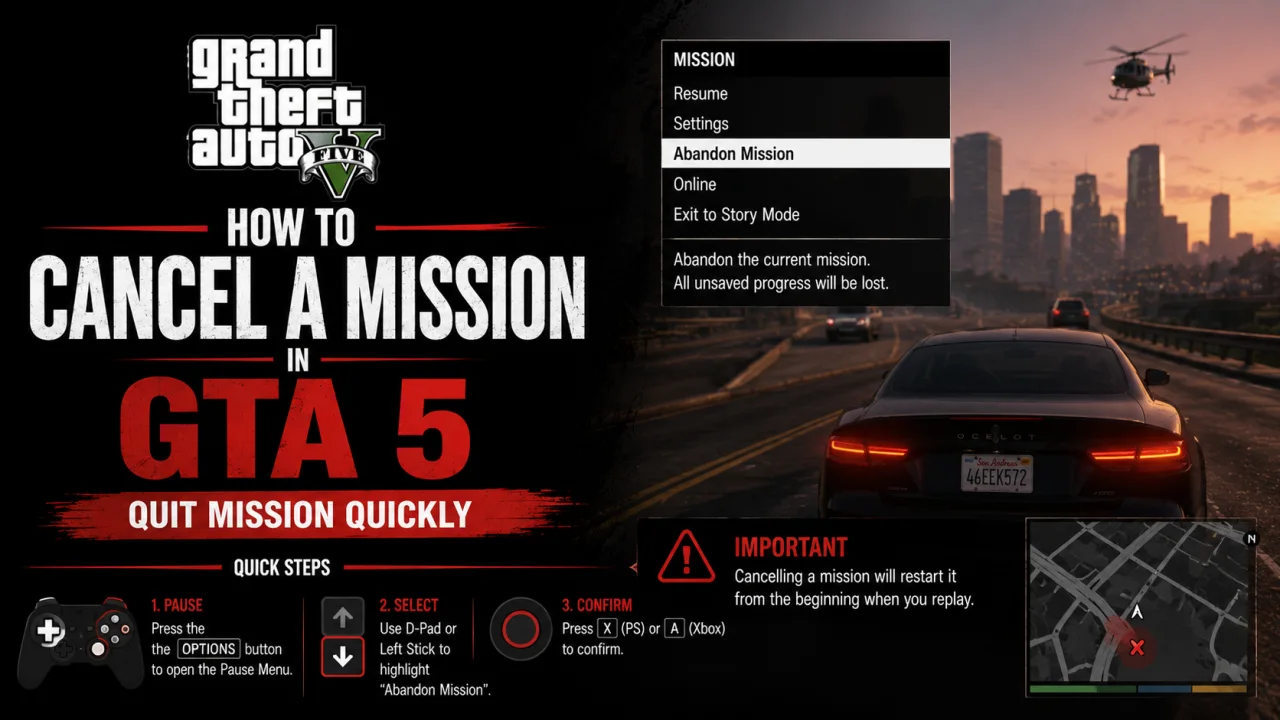
Canceling a mission in GTA 5 depends on the mode you are playing. Story Mode and GTA Online do not use the same quit flow, which is why bad guides often mix up the phone, the pause menu, and the Mission Failed screen.
This guide gives you the fastest legit route for each case. Story Mode players get the fail, exit, or reload route. GTA Online players get the iFruit phone Job List route, plus slower fallbacks for stuck jobs.
The goal is simple: quit the current mission without inventing a fake menu option. If a menu item is not part of the real GTA 5 flow, it is not used here.
GTA 5 Mission Selector
This selector keeps the answer mode-specific. Pick the situation that matches your current screen, then use the section it points to.
Follow this route when you are already inside a GTA 5 Story Mode mission and just want to quit the current attempt.
GTA 5 Mission Checks
- If you are in Story Mode: use GTA 5 Mission Failed Exit first, unless you need a save from before the mission.
- If you started a Story Mode mission by accident: use GTA 5 Story Mode Reload if you have a useful manual save or autosave.
- If you are in GTA Online: use GTA Online Quit Job if the Job List shows your current job.
- If the GTA Online Job List is empty: use GTA Online Session Switch as the safer fallback.
- If you are in a heist or co-op job: quit only if you accept that other players may need to restart or replace you.
GTA 5 Story Mode Cancel
In GTA 5 Story Mode, the clean route is not the phone Job List. The usual method is to fail the mission, then use the Mission Failed screen to exit the attempt.
If you saved before starting the mission, loading that save is cleaner than forcing a failure. This matters most for missions you started by accident, especially if the mission affects your planning.
- Confirm you are in GTA 5 Story Mode.
- Check whether you saved before the mission started.
- Use Load Game if you need to return to the pre-mission state.
- Use Mission Failed Exit if you only need to quit the current attempt.
GTA 5 Mission Failed Exit
This ends the active Story Mode mission attempt when you do not need to preserve the exact pre-mission state.
This is the fastest Story Mode method when you are already inside a mission and do not need to preserve the exact pre-mission state. The failure trigger depends on the mission.
- Stay inside the active Story Mode mission.
- Trigger a normal failure condition for that mission.
- Use a low-effort failure if available, such as getting Wasted, getting Busted, letting a required target escape, leaving a required teammate, or destroying a required mission vehicle.
- Wait for the Mission Failed or Failed screen.
- Choose Exit or the on-screen quit option instead of retrying.
If you need to back out
- Return to the mission marker.
- Start the mission again.
GTA 5 Story Mode Reload
This is the route to use when you accidentally started a mission and need the game state from before it began.
Reloading is the better Story Mode route when you planned around a future mission, saved before a marker, or accidentally triggered a mission that changes your route.
- Pause GTA 5.
- Open the Game tab.
- Select Load Game.
- Choose a save from before the mission started.
- Confirm the load.
If you need to back out
- Open Game again.
- Select Load Game.
- Load a newer save or autosave if one exists.
GTA 5 Quick Save Prep
This prevents the problem before it happens by giving you a pre-mission save to return to.
Quick Save is useful before walking into a mission marker. It is not a mid-mission cancel tool, because Quick Save is not available during missions.
- Make sure no Story Mode mission is active.
- Open the iFruit phone.
- Select Quick Save.
- Choose a save slot you can recognize later.
- Wait for the save indicator to finish.
If you need to back out
- Load a different save slot if you do not want to use that Quick Save.
- Overwrite the slot later if you no longer need it.
GTA Online Quit Job
This clears the active Online job state when the current job appears in the phone Job List.
In GTA Online, the cleanest method is the iFruit phone Job List. This is for Online jobs, not Story Mode missions.
- Open your iFruit phone using your platform phone control.
- Select Job List.
- Select the current job.
- Use the Quit Job or trash prompt shown on-screen.
- Confirm that you want to quit.
If you need to back out
- Open the phone again.
- Accept a new invite or restart the job from the relevant menu or marker.
GTA Online Session Switch
Find New Session is slower than Quit Job, but it can remove you from the current activity or lobby state. Use it when the phone route is not available.
- Pause GTA Online.
- Open the Online tab.
- Select Find New Session.
- Choose an available session type if GTA Online asks.
- Confirm the session change.
If you need to back out
- Rejoin your previous friend, crew, or invite if one is available.
- Restart the job manually if you still want to play it.
GTA Online Leave
Leaving GTA Online is usually slower than using Job List. Use it when the job is stuck, you are done with Online, or switching sessions is not the route you want.
- Pause GTA Online.
- Open the Online tab.
- Select Leave GTA Online.
- Confirm the prompt.
- Wait for Story Mode to load.
If you need to back out
- Open the Online tab again from the pause menu.
- Join GTA Online normally.
- Restart or rejoin the job if you still need it.
GTA 5 Mission Consequences
Quitting a mission is not the same as completing it. The safest wording is that quitting abandons the current attempt, and the exact result depends on the mission type.
Mission Progress: You usually need to return to the mission marker if you exit instead of retrying.
Mission Failure: Failing can affect some medal objectives on the current attempt, especially time or accuracy goals.
Job Rewards: Do not expect payout, RP, setup progress, or teammate progress to be preserved after quitting.
Skipping is also different from quitting. GTA 5 may offer a skip option after repeated failures in a section, but that is a mission progression tool, not a clean cancel button.
GTA 5 Mission Myths
These are common bad shortcuts. They sound useful, but they either mix up modes or are too broad to trust.
Story Mode players should use Mission Failed Exit or Load Game instead of Pause Menu > Brief > Quit Mission.
Quick Save is useful before a mission, but it is not available during missions and is not a mid-mission cancel method.
The phone Job List route is for GTA Online jobs. Story Mode uses the Mission Failed screen or loading a save.
For PC Online jobs, follow the on-screen trash or Quit Job prompt instead of hardcoding one universal key.
GTA 5 Mission FAQs
Yes, but usually not through a universal pause-menu cancel button. Fail the mission, then choose the on-screen exit option, or load a save from before the mission.
In Story Mode, trigger a mission failure and choose Exit. In GTA Online, open the iFruit phone, select Job List, choose the current job, then use Quit Job.
In Story Mode, loading a save from before the mission is the clean route. If you are already inside the mission with no useful save, failing and exiting is the practical route.
No. Quick Save is useful before a mission, but it is not available during missions.
Open the iFruit phone, select Job List, select the current job, then use the Quit Job or trash prompt shown on-screen.
Use Pause Menu, Online, Find New Session. This is slower than Quit Job, but it often clears the current Online activity state.
It can remove you from the current job or activity by moving you to another session. It is a fallback, not the cleanest first option.
Do not assume it saves progress. In Story Mode, you usually restart from the marker or a checkpoint route. In GTA Online, payouts and progress depend on the job type.
Sometimes GTA 5 may offer a skip option after repeated failures in a section. That is not the same as canceling the whole mission.